Can You Screen Share in HubSpot Chat?
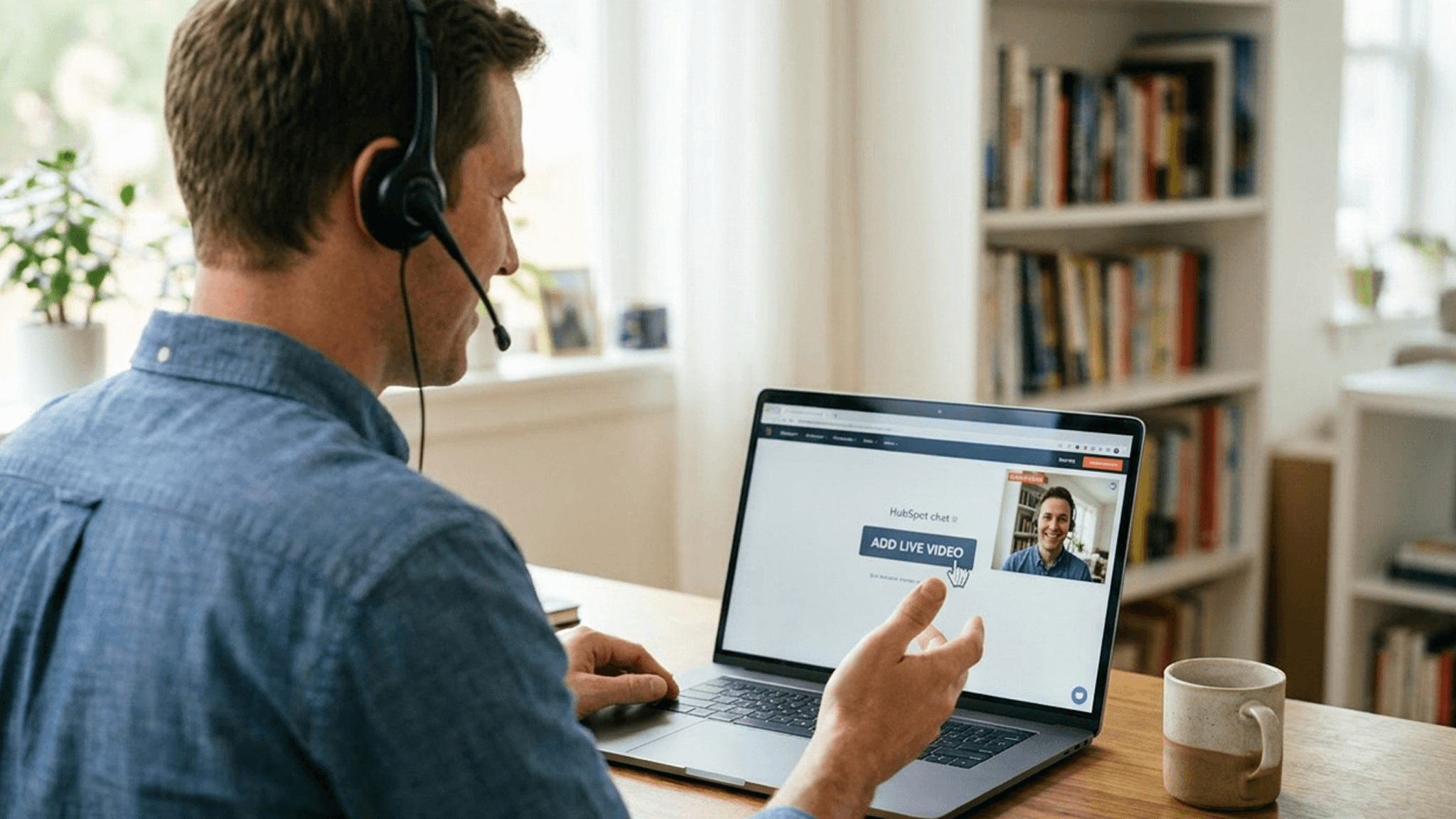
Can you screen share in HubSpot chat? The short answer is no. HubSpot does not offer built-in screen sharing in its live chat or any of its conversation channels. But with the right tool, you can add HubSpot chat screen sharing to your workflow in under five minutes.
This post covers exactly what HubSpot chat can and cannot do, why screen sharing matters for live chat support, and how to set up screen share in HubSpot live chat using a Chrome extension.
What HubSpot Chat Actually Includes
HubSpot's live chat is a text-based messaging tool built into the Conversations inbox. It lets your team have real-time conversations with website visitors and customers directly from your CRM.
Here is what HubSpot live chat supports out of the box:
- Text messaging between agents and visitors
- File attachments so customers can send documents or images
- Chatbot automation through chatflows to qualify leads and route conversations
- Conversation history linked to contact records in the CRM
- Team routing to assign chats to the right agent based on rules
What it does not include is any form of screen sharing, video calling, or real-time visual support. There is no button to see a customer's screen, no way to share your own screen, and no native integration for visual collaboration during a live chat session.
Why This Gap Matters
Text works well for simple questions. A customer asks about pricing, your agent sends a link. A customer wants to reset their password, your agent walks them through it in a few messages.
But many support conversations are not that simple. When a customer is dealing with a visual or technical problem, text-based chat breaks down:
- The customer cannot describe what they see. They type "it is not working" or "there is an error" but cannot articulate the exact state of their screen.
- Screenshots create more confusion. A cropped or blurry screenshot often raises more questions. Your agent has to ask "can you scroll down?" or "what does the full page look like?"
- Multi-step guidance fails over text. Walking someone through a ten-step configuration process via chat messages is slow and error-prone. The customer misreads a step, goes to the wrong page, and both sides lose time.
- Context is lost between messages. By the time the customer replies with the information you asked for, the conversation has shifted and your agent has to re-read the thread to remember where things left off.
HubSpot chat screen sharing eliminates all of this. Instead of guessing what the customer is looking at, your agent sees their screen in real time and resolves the issue on the spot.
How to Add Screen Share to HubSpot Live Chat
Since HubSpot does not include native screen sharing, you need an external tool that integrates with the platform. The most frictionless option is a Chrome extension that works inside HubSpot so your agents never have to leave the conversation.
Direct Sight is built for exactly this. It adds screen sharing and video directly into HubSpot Conversations. Your agents install a Chrome extension. Your customers click a link. No downloads, no accounts, no friction.
Here is how to set it up.
Step 1: Install the Chrome Extension
Go to the Chrome Web Store and search for Direct Sight. Click Add to Chrome and confirm the installation.
The extension installs in seconds, just like any other Chrome extension. There is no desktop application to download and no IT department needed.
Step 2: Create Your Account
Open HubSpot in Chrome and click the Direct Sight icon in your toolbar. Create your account with your name, email, and company details.
You get a free 7-day trial with no credit card required.
Step 3: Start a Session from HubSpot Chat
Open any conversation in your HubSpot inbox. When you are chatting with a customer and need to see their screen, click to start a screen sharing session. Direct Sight generates a unique link that you paste directly into the chat.
The customer clicks the link and their screen sharing session opens instantly in their browser. No software to install. No meeting codes. No separate window.
Step 4: See the Customer's Screen
Once the customer joins, you see their screen in real time. You can identify the problem immediately instead of asking them to describe it. If needed, you can also enable two-way video for a face-to-face conversation.
During the session you can:
- View the customer's screen to diagnose issues visually
- Guide them through steps while watching their progress
- Record the session for training and quality review
Step 5: Continue the Conversation in HubSpot
After the screen sharing session ends, you are still in the same HubSpot chat thread. The conversation history stays intact. You can follow up with a summary, send relevant links, or close the ticket, all without switching tools.
When to Use Screen Sharing in HubSpot Live Chat
Not every chat needs a screen sharing session. Here are the situations where it makes the biggest difference.
Visual or UI Problems
The customer reports a layout issue, a broken button, or an element that does not look right. Seeing their screen immediately tells you whether it is a browser-specific bug, a zoom level issue, or something in your product.
Configuration and Setup
The customer is trying to set up an integration, adjust account settings, or complete an onboarding workflow. Instead of writing out every click, watch their screen and guide them through it live.
Error Diagnosis
The customer sees an error message but does not know what triggered it. Viewing their screen lets you see the full context: the URL, the page state, the console errors, and the steps that led to the problem.
Reproducing Bugs
Your team cannot reproduce an issue the customer reported. A screen sharing session lets you see their exact environment, browser version, extensions, and the sequence of actions that causes the bug.
Frustrated Customers
When a customer's tone shifts from patient to frustrated, switching from text to screen share in HubSpot live chat shows them you are taking the issue seriously. It also resolves the problem faster, which is what they want.
Screen Sharing Versus Sending a Video Call Link
Some teams work around the lack of HubSpot chat screen sharing by sending a Zoom or Google Meet link in the chat. This works, but it introduces friction that undermines the speed advantage of live chat.
Screen Sharing in Chat
- Customer effort: Click a link in the chat
- Downloads required: None
- Context preserved: Stays in HubSpot thread
- Time to connect: Seconds
- Recording: Available in dashboard
Separate Video Call
- Customer effort: Leave chat, open new app, join meeting
- Downloads required: Often required (Zoom client, etc.)
- Context preserved: Disconnected from CRM conversation
- Time to connect: Minutes (meeting setup, waiting room)
- Recording: Stored separately
The advantage of adding screen sharing directly to HubSpot chat is that it keeps everything in one place. The customer does not have to leave the chat window, your agent does not have to switch tools, and the conversation history stays complete.
Frequently Asked Questions
Can you screen share natively in HubSpot?
No. HubSpot does not include built-in screen sharing in live chat, email, or tickets. You need an external tool like Direct Sight to add screen sharing to HubSpot.
Does the customer need to install anything to screen share?
No. With Direct Sight, only your agents install the Chrome extension. Customers join by clicking a link that opens in their browser. There is nothing to download or create an account for.
Does HubSpot chat screen sharing work on all HubSpot plans?
Yes. The Direct Sight extension works with any HubSpot plan that includes access to Conversations, including the free CRM.
Can I screen share in HubSpot on mobile?
Customers can join screen sharing sessions from any modern mobile browser. Your agents use the Chrome extension on desktop within HubSpot.
Is the screen sharing session secure?
Yes. Sessions are encrypted and Direct Sight is built to comply with GDPR requirements. Customers control what they share, and session recordings are stored securely. See our privacy policy for details.
Can I record the HubSpot chat screen sharing session?
Yes. You can enable recording during any session. Recordings are stored in your Direct Sight dashboard and can be used for training, quality assurance, and reviewing complex issues.
Start Screen Sharing in HubSpot Chat Today
HubSpot chat does not include screen sharing, but that does not mean your team has to work without it. Adding screen share to HubSpot live chat with Direct Sight takes minutes to set up and immediately reduces the back-and-forth that slows down support.
Try Direct Sight free for 7 days. No credit card required.