How to Integrate Screen Sharing With HubSpot

If you use HubSpot for customer support, you have probably hit a familiar wall. A customer submits a ticket describing a problem. Your agent asks for a screenshot. The customer sends a blurry image that raises more questions than it answers. Three replies later, you are still trying to understand what they are looking at.
Adding screen sharing to HubSpot solves this instantly. Instead of playing a guessing game over text, your agent sees the customer's screen in real time, diagnoses the issue, and walks them through the fix. The entire interaction takes minutes instead of days.
This guide covers everything you need to know about how to add screen sharing to HubSpot, from understanding your options to a full step-by-step installation walkthrough.
Why Screen Sharing Matters for HubSpot Support Teams
HubSpot is built for managing conversations. It handles tickets, live chat, email sequences, and knowledge bases. But when a customer has a complex or visual problem, text-based support falls short.
Consider these scenarios that HubSpot support teams face every day:
- A customer cannot find a setting in your software and no amount of written instructions helps
- A bug appears on the customer's machine but not on yours, and you need to see their browser environment
- A customer is trying to complete a multi-step onboarding process and keeps getting stuck at different points
- An integration between your product and a third-party tool is not working and you need to see the error in context
In all of these cases, a single screen sharing session replaces five or more back-and-forth messages. Research from Harvard Business Review has found that reducing customer effort is the single strongest driver of loyalty. Screen sharing is one of the most effective ways to do exactly that.
The Cost of Not Having Screen Sharing
Without screen sharing in HubSpot, your team absorbs hidden costs:
- Longer resolution times. Tickets that should take five minutes stretch across multiple days because each reply requires the customer to describe what they see, attach a file, or try another suggestion.
- Higher ticket volume. When a single issue generates eight messages instead of one screen sharing session, your queue grows faster than it needs to.
- Lower CSAT scores. Customers do not rate their experience based on whether you eventually solved the problem. They rate it based on how much effort it took.
- Agent fatigue. Agents spend mental energy deciphering vague descriptions instead of doing what they do best: solving problems.
Current Options: HubSpot's Native Limitations
HubSpot does not include built-in screen sharing. The platform focuses on conversation management, CRM data, and automation. For real-time visual support, you need an external tool.
Here is how teams have traditionally tried to fill this gap:
Separate Video Conferencing Tools
Some teams send customers a Zoom or Google Meet link from within HubSpot. This works, but it creates friction:
- The customer has to leave the chat window and open a new application
- The session is not linked to the HubSpot ticket or contact record
- There is no recording tied to the CRM for future reference
- Customers may need to download software or create an account
Generic Screen Sharing Plugins
Other teams use standalone screen sharing tools that are not designed for HubSpot. These often require the customer to install software, share a meeting code, or navigate to a separate website. Every extra step increases the chance the customer abandons the process.
The HubSpot Screen Sharing Chrome Extension Approach
The most seamless solution is a screen sharing extension for HubSpot that works directly inside your existing workflow. Rather than switching tools or sending external links, the extension integrates into the HubSpot interface so your agents can launch screen sharing sessions without leaving the conversation.
This is the approach Direct Sight takes. It is a HubSpot screen sharing Chrome extension that adds screen sharing and video directly into HubSpot Conversations, with zero downloads for your customers and full session history in your CRM.
How to Add Screen Sharing to HubSpot: Step-by-Step
Setting up screen sharing in HubSpot with Direct Sight takes less than five minutes. Here is how to install screen sharing in HubSpot and get your team up and running.
Step 1: Install the Chrome Extension
Visit the Chrome Web Store and search for Direct Sight, or navigate directly to the extension page. Click Add to Chrome and confirm the installation when prompted.
The HubSpot screen sharing Chrome extension installs like any other Chrome extension. There is no separate application to download and no system-level permissions required.
Step 2: Create Your Account
After installing the extension, open HubSpot in your browser. You will see the Direct Sight icon in your Chrome toolbar. Click it to create your account.
The setup process asks for:
- Your name and email address
- Your company name
- Your role on the team
Direct Sight offers a free 7-day trial with no credit card required, so you can test everything before committing.
Step 3: Open HubSpot Conversations
Navigate to your HubSpot inbox where you handle customer conversations. This works with HubSpot's Conversations tool, including live chat, email, and ticket-based workflows.
When you open a conversation, the Direct Sight extension detects that you are in HubSpot and activates automatically.
Step 4: Start a Screen Sharing Session
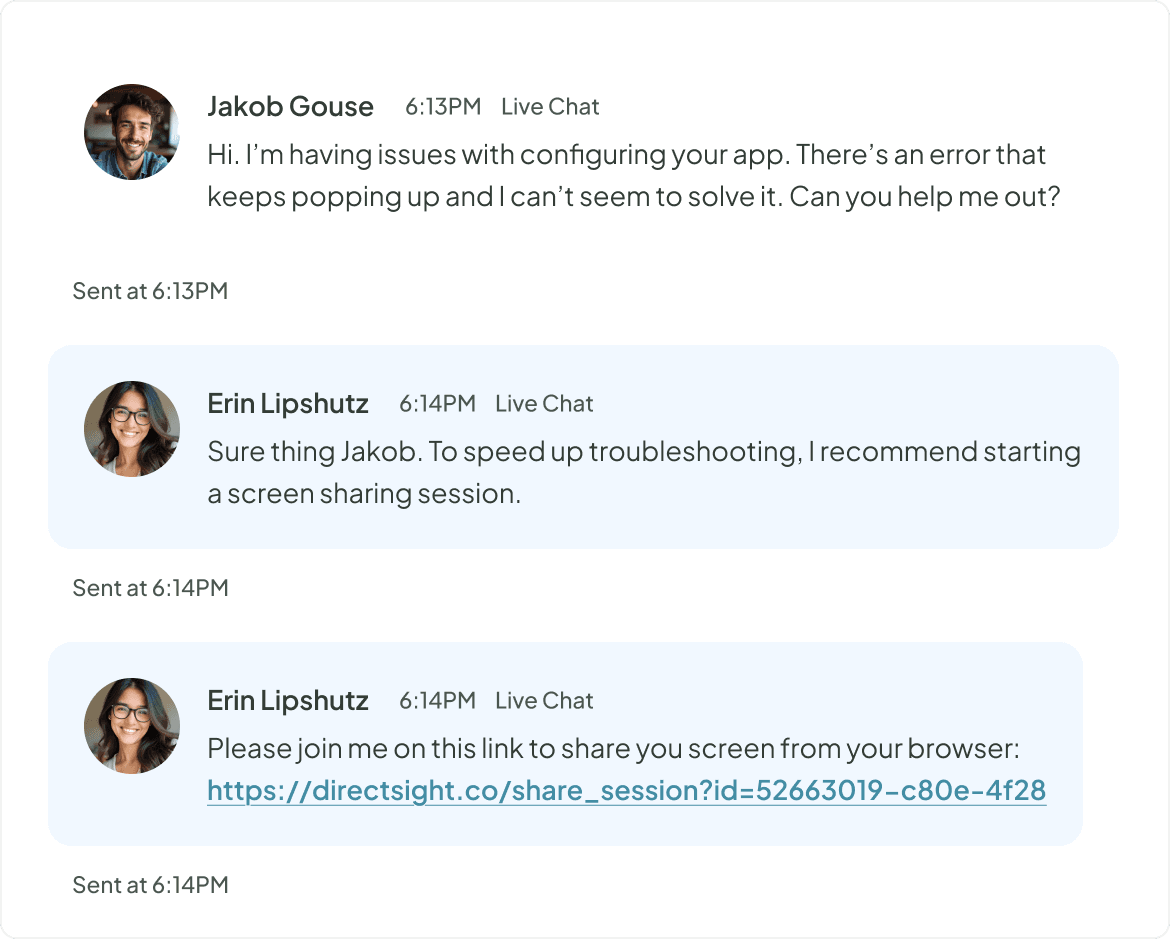
Inside any HubSpot conversation, you will see the option to start a screen sharing or video session. Click to start a session and Direct Sight generates a unique link.
Share the link with your customer directly in the HubSpot chat. When the customer clicks the link, their screen sharing session opens instantly in their browser. No downloads. No accounts. No friction.
Step 5: See What Your Customer Sees
Once the customer joins, you can see their screen in real time. You can also enable two-way video if the situation calls for a face-to-face conversation.
During the session, you can:
- View the customer's screen to diagnose the issue
- Use video to walk them through a solution
- Record the session for training and quality assurance
Step 6: Review the Session in HubSpot
After the session ends, the recording and session details are automatically available in your Direct Sight dashboard. Your team can review past sessions, track resolution patterns, and use recordings for agent training.
Best Practices for Using Screen Sharing in HubSpot
Adding screen sharing to HubSpot is only the first step. How your team uses it determines the impact. These practices help you get the most out of HubSpot screen sharing.
Know When to Offer Screen Sharing
Not every ticket needs a screen sharing session. Use it when:
- The customer has already sent two or more messages and the issue is still unclear
- The problem involves a visual element like a UI bug, a configuration screen, or an error message
- The customer is struggling with a multi-step process
- Written instructions are not landing and you sense the customer is getting frustrated
A good rule of thumb: if you are about to type "Can you send me a screenshot?", offer a screen sharing session instead.
Set Expectations Before Starting
When you offer screen sharing to a customer, briefly explain what will happen:
- Let them know the session opens in their browser with no download required
- Tell them roughly how long you expect the session to take
- Clarify what you will be able to see (their screen, not their files or passwords)
This reduces hesitation and makes customers more likely to accept.
Record Sessions for Training
Screen sharing recordings are valuable beyond the individual ticket. They show:
- Common points where customers get stuck in your product
- How your best agents diagnose and resolve issues
- Patterns that suggest your product's UX needs improvement
Review recordings regularly as a team. They are one of the fastest ways to improve both your product and your support quality.
Use Screen Sharing for Proactive Support
Screen sharing is not only for reactive troubleshooting. Consider using it during:
- Onboarding calls. Walk new customers through setup while seeing their screen.
- Account reviews. Show customers features they are not using by screen sharing your own dashboard.
- Escalations. When a ticket gets escalated, the next agent can watch the recording instead of asking the customer to explain everything again.
Track the Impact
After adding screen sharing to HubSpot, measure the difference. HubSpot's reporting tools can help you track:
- Average resolution time before and after implementation
- First-contact resolution rate for tickets where screen sharing was used versus those where it was not
- CSAT scores for screen sharing interactions
- Average number of messages per ticket with and without screen sharing
These metrics make it easy to justify the investment and refine how your team uses the tool.
Screen Sharing for HubSpot Service Hub
If your team uses HubSpot Service Hub specifically, screen sharing fits naturally into your existing workflows. Service Hub is designed around ticket management, knowledge bases, and customer feedback. Screen sharing extends these capabilities by adding a real-time visual channel.
With a HubSpot screen sharing plugin like Direct Sight, your Service Hub agents can:
- Launch screen sharing sessions directly from ticket conversations
- Keep all session activity connected to the customer's contact record
- Use session recordings alongside ticket notes for complete context
- Reduce the number of ticket touches by resolving issues visually on the first interaction
This is particularly valuable for teams that have invested in HubSpot Service Hub's ticketing and reporting features. Screen sharing data flows into your existing reporting, giving you a complete picture of your support operations.
Frequently Asked Questions
Does the customer need to install anything?
No. When you add screen sharing to HubSpot with Direct Sight, only your support agents install the Chrome extension. Customers join sessions by clicking a link that opens directly in their browser. There is nothing to download or install on the customer's side.
Does this work with HubSpot live chat?
Yes. The screen sharing extension for HubSpot works with HubSpot Conversations, which includes live chat, email, and ticket-based conversations. You can share a screen sharing link directly in a HubSpot live chat screen share session.
Is the screen sharing session recorded?
Sessions can be recorded if you choose to enable recording. Recordings are stored securely and can be accessed from your Direct Sight dashboard. This is useful for training, quality assurance, and reviewing complex customer issues.
What about data security and GDPR?
Direct Sight is designed with security and privacy as a priority. Sessions are encrypted, and the platform is built to comply with GDPR requirements. Customers control what they share, and recordings are stored securely with access controls. See our privacy policy for full details.
Can I use this with HubSpot's free plan?
Yes. The HubSpot screen sharing Chrome extension works with any HubSpot plan, including the free CRM. As long as you have access to HubSpot Conversations, you can use screen sharing.
How many agents can use it?
Direct Sight offers plans for individual agents, small teams, and growing organisations. During the free trial, you can test with your team to see how it fits your workflow.
Does it work with browsers other than Chrome?
The extension is built for Google Chrome, which is the most widely used browser for HubSpot. Customers joining a session can use any modern browser, including Chrome, Firefox, Safari, and Edge.
Get Started with HubSpot Screen Sharing Today
Adding screen sharing to HubSpot takes less than five minutes and transforms how your team handles support. Instead of long email threads and blurry screenshots, your agents see the customer's screen in real time and resolve issues on the spot.
Try Direct Sight free for 7 days. No credit card required.